 English
 Русский
 Deutsch
 Français
 Nederlands
 Română
 Other languages
 Photo
Photo Documentation
Script's Guide
Installation
Assume you want to install the script at yourdomain.com
- Unzip files and upload them via FTP on yourdomain.com
- Modify the file: yourdomain.com/admin/function/db.php with correct MySQL database information.
define( "dbuser", "yourdbuser" );
define( "dbpassword", "yourdbpassword" );
define( "dbname", "storedb" );
define( "dbhost", "localhost" );
//Site HTTP URL
define( "surl", "http://yourdomain.com" );
//Site HTTPS URL
define( "ssurl", "http://yourdomain.com" );
//Site root. It is an empty if the script is in root directory or "/store" if the script in "/store" directory.
define( "site_root", "" );
- Click yourdomain.com/install/ and follow instructions
- If you receive the error writable notifications on installation page you should set writable permissions for the folders.
- Delete yourdomain.com/install/
- if you install the script at yourdomain.com/somefolder/ you should edit /.htaccess file and replace "RewriteBase /" with "RewriteBase /somefolder/"
That's all!
If you have any questions/problems you should contact us or read FAQ - Installation
Configuration - Settings - Global
There is a list of global settings.
Please log in and go to Admin Panel -> Settings -> Site settings
| Setting | Description | Example |
|
Site name |
It is a title of the site <title>Site name</title> |
Photo Store script |
|
Admin email |
It is an email where the site admin receives all notifications from the site. |
admin@yourdomain.com |
|
From |
It is an email which shows in "From" field of all notifications to a site user. Admin email and "From email" must be different. |
noreply@yourdomain.com |
|
Date format |
Date format on the site |
m/d/Y |
|
Allow photo |
It switchs on/off selling photos on the site |
True/false |
|
Allow video |
It switchs on/off selling video on the site |
True/false |
|
Allow audio |
It switchs on/off selling audio on the site |
True/false |
|
Allow vector |
It switchs on/off selling vector on the site |
True/false |
|
Prints |
It allows to sell prints for photo and vector publications. |
True/false |
|
Sell prints only |
It allows to sell ONLY prints for photo and vector publications � not files. |
True/false |
|
Affiliates |
It switches on/off the user type. |
True/false |
|
Common account for buyers,sellers and affiliates |
The users can be buyers, sellers and affiliates simultaneously. |
True/false |
|
Photographers |
A visitor can register as photographer (seller), upload and sell his/her files. |
True/false |
|
Seller examination |
All new registered sellers have to take an examination. |
True/false |
|
User uploads premoderation |
All seller's uploads are premoderated by default. |
True/false |
|
Credits |
It allows to sell files using prepaid credits. If it is false then the prices show in currency. |
True/false |
|
Subscription |
It allows to sell a time access to the files. |
True/false |
|
Subscription only |
There is no a shopping cart on the site. You can download files only by the subscription. |
True/false |
|
Items on the page |
The amount of items on content category page |
30 |
|
Small thumb width |
The script geneartes the previews. The small landscape photo, video, audio, vector, category previews will have the width. |
120 |
|
Maximum small thumb height |
This is a height for the small portrait's photo's previews. |
120 |
|
Big thumb width |
This is a width of the big landscape photo and vector previews. |
400 |
|
Maximum big thumb height |
This is a height of the big portrait photo previews. |
400 |
|
Hover view photo |
It allows to display a big thumb if a user mouses over a small thumb. |
True/false |
|
Hover view video |
It allows to display video preview file if a user mouses over a video preview photo file. |
True/false |
|
Hover view video width |
The width of video preview hover. |
200 |
|
Items in news box |
The amount of the headers in a news box. |
3 |
|
User status as default |
This is a category of the photographers by default. The sellers may have different status with different rights, commission and upload limits. |
Silver |
|
Avatar width |
The width of a user avatar in pixels |
30 |
|
Photo preupload folder |
The folder on FTP where you should preupload photos for the bulk upload. |
/content/photopreupload/ |
|
Video preupload folder |
The folder on FTP where you should preupload video for the bulk upload. |
/content/videopreupload/ |
|
Audio preupload folder |
The folder on FTP where you should preupload audio for the bulk upload. |
/content/audiopreupload/ |
|
Vector preupload folder |
The folder on FTP where you should preupload cectors for the bulk upload. |
/content/vectorpreupload/ |
|
Blog |
It allows users to have own blogs on the site. |
True/false |
|
Messages |
It allows users to send messages to each other. |
True/false |
|
Testimonials |
It allows users to write testimonials about each other. |
True/false |
|
Reviews |
It allows users to write comments on the publication page. |
True/false |
|
Friends |
It allows users to make own community net on the site. |
True/false |
|
Download limit |
The user may use a download link only 'Download limit' times. |
10 |
|
Days till download expiration |
The download link will be live for the time. |
20 |
|
Download sample |
It shows a download sample link on the publication pages. |
True/false |
|
Check or Money Order |
It allows to use the method in the payment process. |
True/false |
|
Related items |
It dispalys related items on the publication pages |
True/false |
|
Related items quantity |
The amount of related items on the page |
3 |
|
Content type as default |
You may specify different types of content to use them in subscription plans. |
Common |
|
Zoomer |
It shows a zoomer on a photo publication page. |
True/false |
|
Model property release |
It requires to upload a model release file for the publications. |
True/false |
|
Show model property release on front end |
You can show/hide a model release on the site. |
True/false |
|
Flash |
You can upload flash files as vector publication |
True/false |
|
Flash width |
The width of the flash previews on the site. |
400 |
|
Flash height |
The height of the flash previews on the site. |
290 |
|
Items in Bulk Upload |
The setting defines the quantity of the files in the video/audio/vector bulk upload process. |
10 |
|
Google Coordinates |
All uploaded files can be displayed on the google map. |
True/false |
|
Google map API |
Google previously required a registration to use Google map. |
You can keep the field empty now. |
|
Show EXIF info |
The visitors can see photo's EXIF info. |
True/false |
|
Google Captcha |
The script uses Google captcha or own security code for the registration form |
True/false |
|
Google Captcha Public Key |
This is a parameter for the Google captcha. You can get it here |
6LcGbMoSAAAAAIStXBGMnRYldIefVK54EiIrCubq |
|
Google Captcha Private Key |
This is a parameter for the google captcha. You can get it here |
6LcGbMoSAAAAAHTLpzNeDfOzmo-YKZeIAvJwwx1w |
Configuration - Settings - Languages
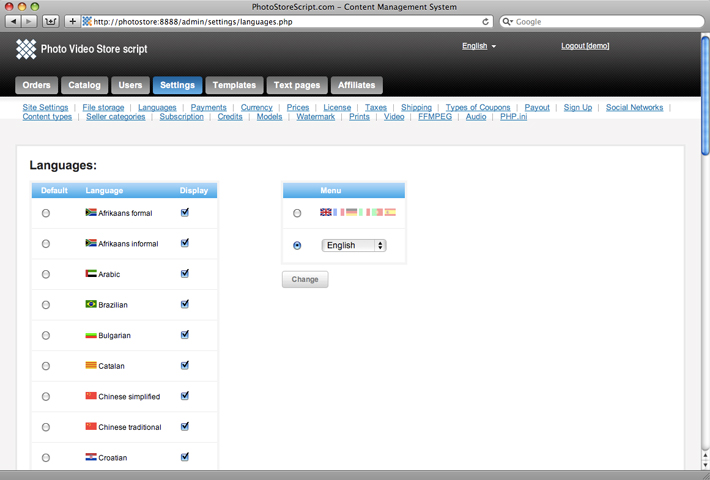
The script is translated to 45 languages.
Please log in and go to Admin Panel -> Settings -> Languages
Here you may select a list of appropriate languages, set up a default language and define a menu.
You can modify translation's files here on ftp: /admin/languages/
Configuration - Settings - Currency
Please log in and go to Admin Panel -> Settings -> Currency
You should select an appropriate currency.
Please, notice: The price can be in currency or in prepaid Credits.
To switch on/off Credits you should go to Admin Panel -> Settings -> Site settings and enable 'Credits'. In this case all prices will be in the Credits. Othervise if the Credits are disabled all prices will be in a currency.
Configuration - Settings - Media content
Please log in and go to Admin Panel -> Catalog
You can upload and sell 4 types of the media files:
- Photo
- Video
- Audio
- Vector
Photo publication consists of:
- 2 photo's thumbs
- a list files for sale. Format: *.jpg, *.jpeg. You can specify them here Admin panel - >Settings -> Prices -> Photo
Video publication consists of:
- *.jpg photo preview
- *.flv or *.mp4 or *.mov or *.wmv video preview
- a list of files for sale. Any format. You can specify them here Admin panel - >Settings -> Prices -> Video
Audio publication consists of:
- *.jpg photo preview
- *.mp3 audio preview
- a list of files for sale. Any format. You can specify them here Admin panel - >Settings -> Prices -> Audio
Vector publication consists of:
- *.jpg photo preview or *.zip archive of *.jpg previews
- *.swf flash preview (optional)
- a list of files for sale. Any format. You can specify them here Admin panel - >Settings -> Prices -> Vector
Yes you can. You may sell ALL file's types. For example, *.pdf file can be uploaded as a vector publication.
Question: Can I sell CD collections?Yes you can. You should zip your CD collection and upload it as a vector publication.
The file publication has some the next properties:
| Field: | Description: | Example: |
|
Title |
The title of publication |
Cool photo |
|
Description |
The short description of publication |
Photo of my last visit to London |
|
Keywords |
The list of keywords. ',' - delimiter |
London,city,tower |
|
Category 1 |
Main category |
Categories dropdown select menu. |
|
Category 2 |
The second category |
Categories dropdown select menu. |
|
Category 3 |
The third category |
Categories dropdown select menu. |
|
Published date |
The date when the publication was uploaded. |
03/05/2007 |
|
Views |
The amount of publication visits |
1034 |
|
Author |
The author of publication |
siteowner |
|
Published |
If it is true the publication may be displayed on the site. |
True/false |
|
Featured |
The easiest way to mark the best publications and display them on home page. |
True/false |
|
Content type |
The way to sort of a content. (See Configuration - Media content - Content types) |
Common |
|
Free download |
If it is true the publication can be downloaded for free. |
True/false |
|
Model release |
Model property release |
Select menu |
|
Google X coordinate |
The coordinate on the Google map |
62.3343099292 |
|
Google Y coordinate |
The coordinate on the Google map |
34.8486328125 |
Question: Can the script extract IPTC & EXIF information and add it to a photo publication automatically?Yes. The Photo Video Store script supports the feature.
You can create any Category Tree from the publications.
You should go to Admin panel - >Catalog -> Categories
Every Category has the next fileds:
| Field: | Description: | Example: |
|
Title |
The title of publication |
Cool photo |
|
Priority |
The position of category in the list. |
1 |
|
Category |
It allows to change a parent category. |
Categories dropdown select menu. |
|
Description |
The short description of category. |
The photos of London |
|
Password |
It allows to restrict an access to the category for users. If the password is empty then the category is available for everyone. |
fox |
|
Photo |
The photo thumb of category. It generates automatically from the original image. |
Photo url |
|
Allow users upload |
It allows photographers to upload files to the category |
True/false |
|
Published |
If it is true then the category is available on the front end |
True/false |
Configuration - Media content - Photo settings
Every photo piblication may have several sizes of the same photo. The photo copies are generated automatically from initial uploaded image. You should specify a list of necessary photo sizes at
Admin Panel -> Settings -> Prices -> Photo
But first you have to specify a list of the licenses: Admin panel -> Settings -> Licenses
Example: Royalty free, Extended. The license is a price's category.
| Field: | Description: | Example: |
|
Title |
The title of a photo size |
Small |
|
Priority |
The position of photo size in the list. |
1 |
|
Size |
The width of a landscape photo or the height of a portrait photo in pixels |
500 |
|
Description |
The short description of photo size. |
Photo width: 500px |
|
Price |
The price of photo size |
2.00 |
Question: Can I sell a photo with initial sizes?
Yes you can. You should set 'size' field as '0' to do that. The script determines real sizes of image automatically.
Configuration - Media content - Watermark
All photo's previews are protected by a watermark.
Please go to Admin Panel -> Settings -> Watermark
You should upload a transparent *.png file with your logo or an inscription there. Also you may define a position of the watermark on an image.
Question: I uploaded a new watermark but I cannot find any changes on the site. Why?The photos with watermarks are generated one time during uploading. The new watermark will affect new publications only. You can regenerate the thumbs here: Admin panel -> Catalog -> select action. Attention! It can overload your server.
Question: I uploaded a watermark but it shows at the top of the thumb.The watermark width must be smaller than vertical thumb's width.
Configuration - Media content - Video types
Please go to Admin Panel -> Settings -> Prices -> Video
You should define a list of available video types here.
| Field: | Description: | Example: |
|
Title |
The title of a video type |
QuickTime |
|
Type |
The extentions of video types. "," - delimiter. |
mod |
|
Price |
The price of the video file |
5.00 |
|
Priority |
The position of the type in the list |
1 |
Configuration - Media content - Video upload form
Please go to Admin Panel -> Settings -> Video
You may specify here:
- Video upload form for users
- Different properties of the video:
- Clip Format
- Aspect Ratio
- Field Rendering
- Frames per Second
Configuration - Media content - Audio types
Please go to Admin Panel -> Settings -> Prices -> Audio
You should define a list of available audio types here.
| Field: | Description: | Example: |
|
Title |
The title of a video type |
MP3 |
|
Type |
The extentions of audio types. "," - delimiter. |
mp3 |
|
Price |
The price of the audio file |
5.00 |
|
Priority |
The position of the type in the list |
1 |
Configuration - Media content - Audio Upload Form
Please go to Admin Panel -> Settings -> Audio
You may change:
- Audio upload form for users
- Different properties of the audio:
- Track Source
- Track Format
Configuration - Media content - Vector types
Please go to Admin Panel -> Settings -> Prices -> Vector
You should define a list of available vector types here.
| Field: | Description: | Example: |
|
Title |
The title of a vector type |
Vector |
|
Type |
The extentions of vector types. "," - delimiter. |
Eps,ai,cdr,zip |
|
Price |
The price of the vector file |
5.00 |
|
Priority |
The position of the type in the list |
1 |
Configuration - Media content - Content types
The content type by default is Common. You can change it in Site settings
You are able to bulk change a content type for the publications here: Categories -> Select action and Catalog -> Select action
Please go to Admin Panel -> Settings -> Content types
Configuration - Media content - Prints types
You may sell not only digital files - prints items too. You may add prints for photo and vector publications.
Please go to Admin Panel -> Settings -> Prints types
Here you may specify pints types:
| Field: | Description: | Example: |
|
Title |
The title of a print |
Framed |
|
Priority |
The position of a print in the list. |
1 |
|
Description |
The short description of a print. |
Photo width: 500px |
|
Price |
The price of a print |
2.00 |
|
Shipping price |
The price for shipping |
1.00 |
|
Each additional item |
The price for shipping for each additional print |
1.00 |
|
Quantity |
The amount of available prints |
10 |
You can see a list of current prints here:
Please go to Admin Panel -> Catalog -> Prints
Question: Can I sell only prints - not digital files?
Yes, you can. You should go too Admin panel -> Settings - > Site Settings and check 'Sell prints only'
Configuration - Media content - Licenses
The media files have different rights of usage. You may define a list of available licenses and describe them (Royalty Free, Extented and ect.).
Please go to Admin Panel -> Settings -> Licenses
Uploading content
You have 3 ways to upload files on the site:
The 1st and 2nd methods are for a site admin, the 3rd one is for a seller (photographer).
Lets describe each method in details.
Uploading content - Admin upload panel
Please go to Admin Panel -> Catalog
There are 4 buttons on the top:
- Upload photo
- Upload video
- Upload audio
- Upload vector
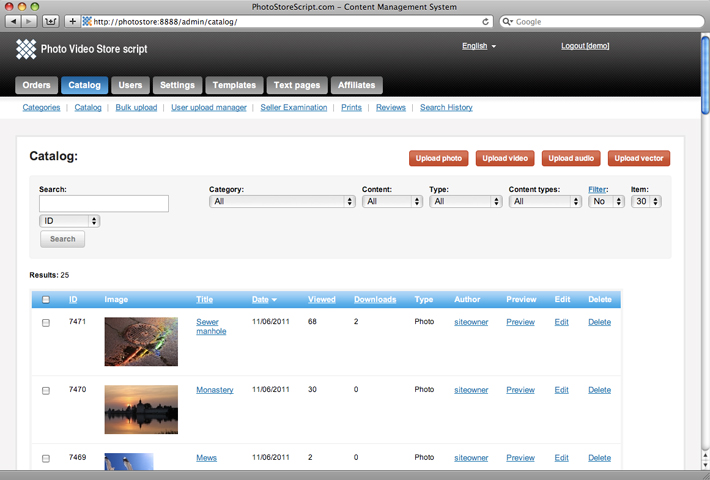
If you click on the 'Upload' button you will go to the admin upload form:
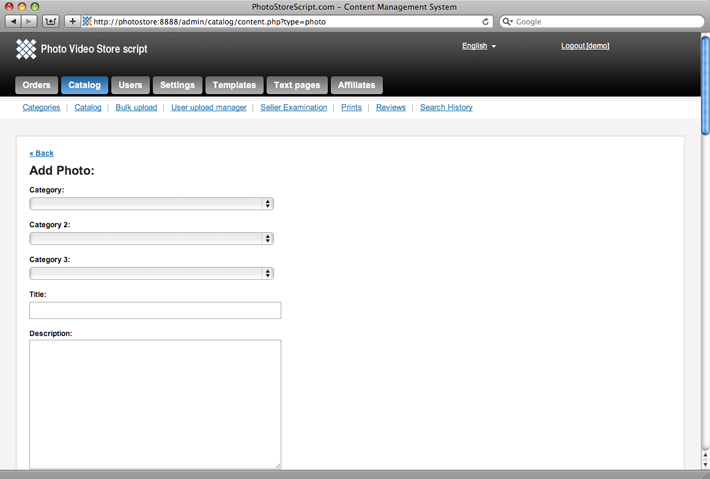
Here you may browse a file for sale, specify different sized copies, prints and upload it on the site.
Please read Configuration - Media content to figure out what means every field.
Uploading content - Admin bulk upload panel
To accelerate uploading process we developed a bulk upload feature where you may upload several files simultaneously.
Please go to Admin Panel -> Catalog -> Bulk Upload
First you should preupload files on FTP:
/content/photopreupload/
/content/videopreupload/
/content/audiopreupload/
/content/vectorpreupload/
and then select files and click "Upload"
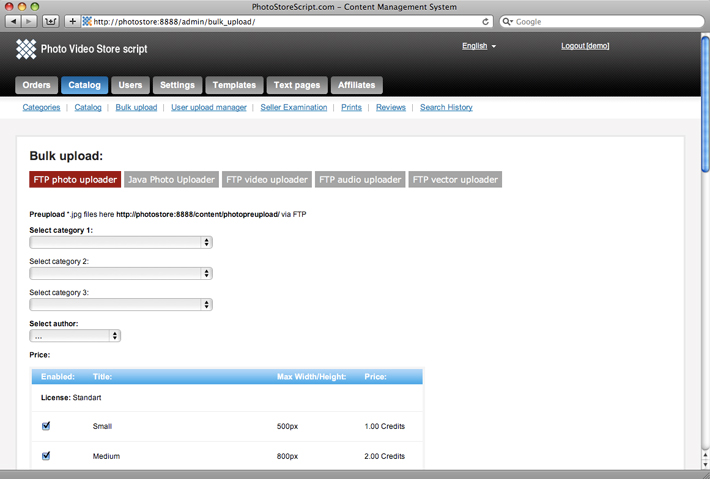
Additionally you can upload photos (only) by Java uploader.
Uploading content - User upload panel
The users may sign up on the site as sellers (photographers), upload their files, sell them and earn a commission.
The script supports different types of photographers with own rights, limits and commission. Please read Seller types for more information.
To became a photographer the customer needs to register as a seller on a front end and go to
Front End ->Member area -> My upload
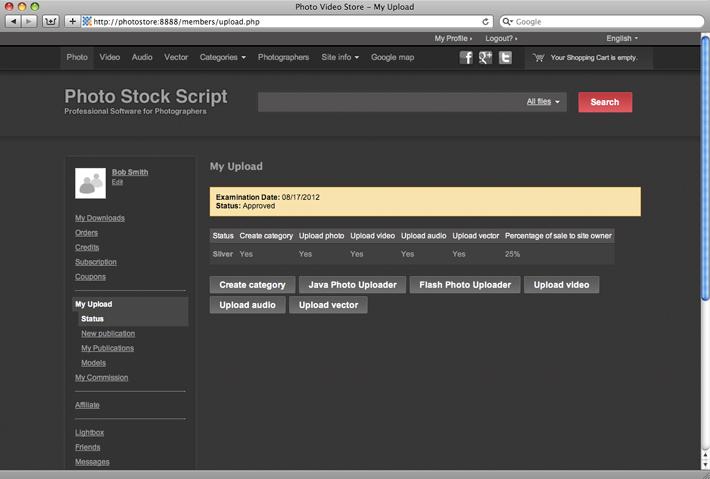
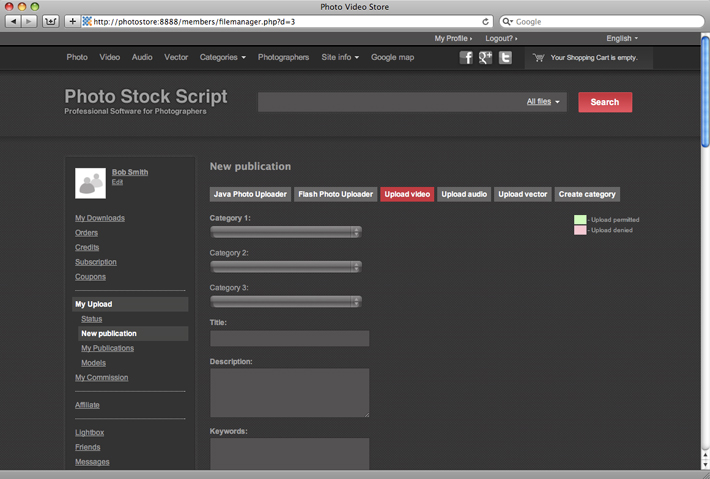
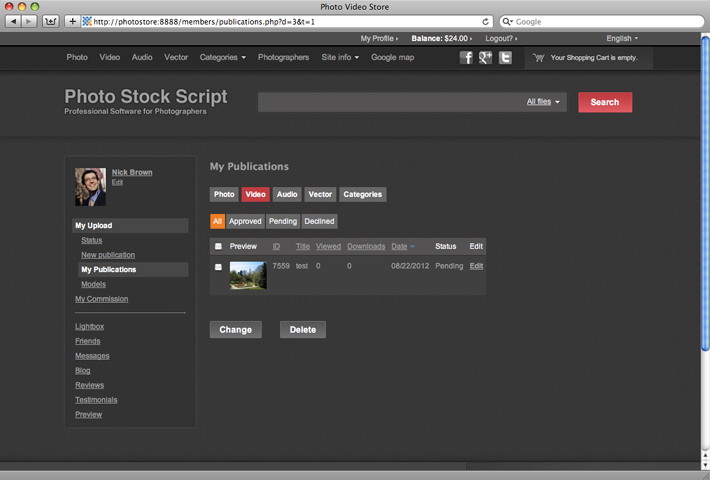
There are 3 sections:
1) Status. Here the customer can know about his/her rights.
2) File manager. Here the customer may upload files.
3) My publications. It is a list of all users publications.
Uploading content - User Upload Moderation
All seller's uploads are premoderated. They aren't published on a live site by default. You may switch off the option in Admin panel -> Settings -> Site settings -> User uploads premoderation
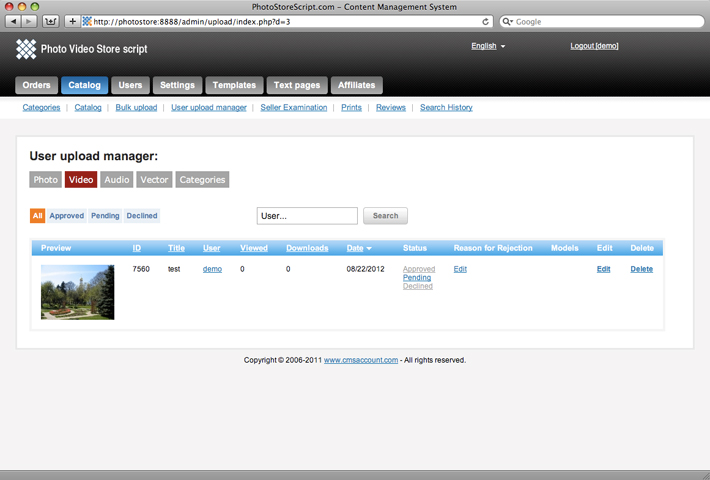
To moderate user's publications please go to Admin panel -> Catalog -> User upload manager
There you can easy to enable or disable a publication.
Selling content - Payments gateways
The media stock script supports many well-known payment gateways which allow you to accept money around the world.
You should go to Admin panel -> Settings -> Payment gateways and set up your accounts.
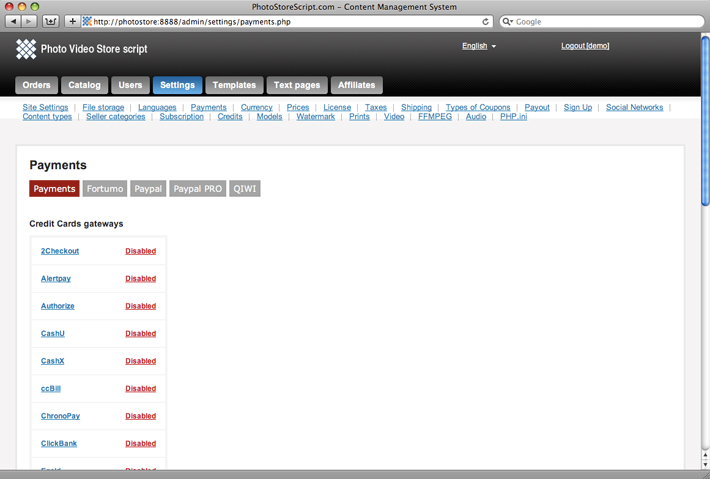
Question: Could you integrate a new payment gateway?Yes, we could integrate a new gateway for free. The most of available gateways weere added after our clients requests.
Selling content - Orders
The site owner can sell media content per file.
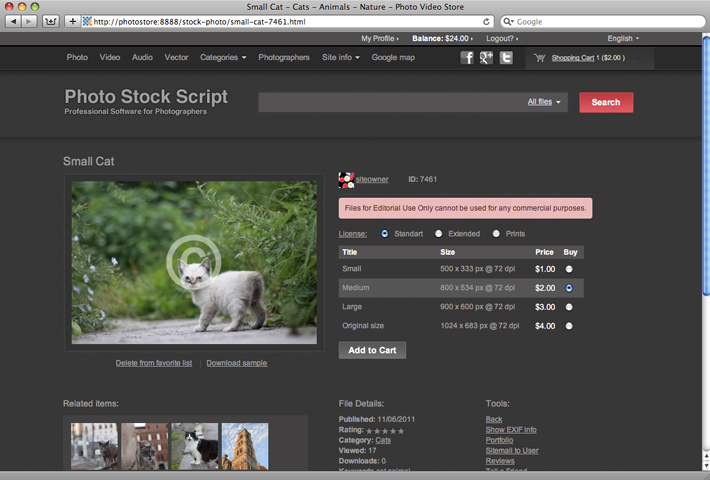
1) Every registered user may add files to shopping cart:
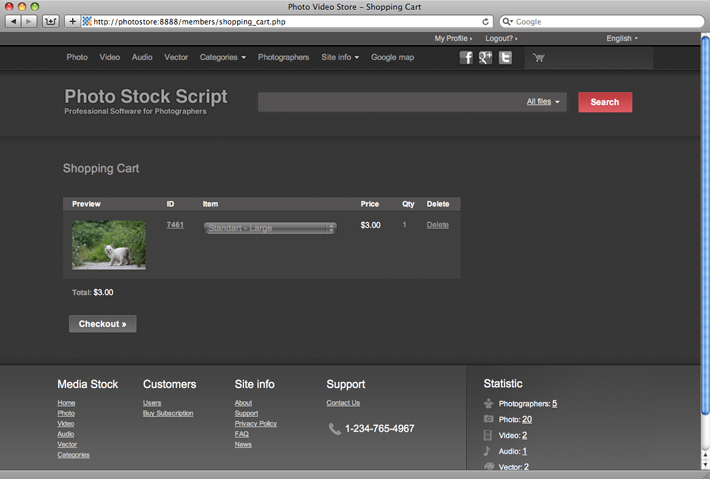
2) View shopping cart:
3) Click Checkout
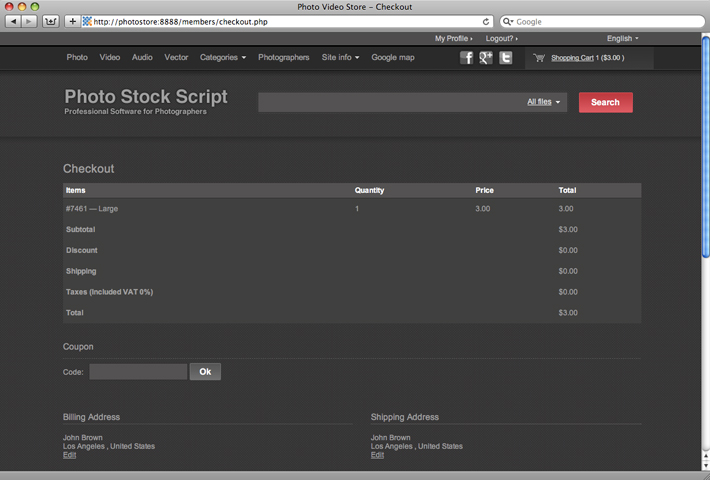
4) Order the files and select Payment method:
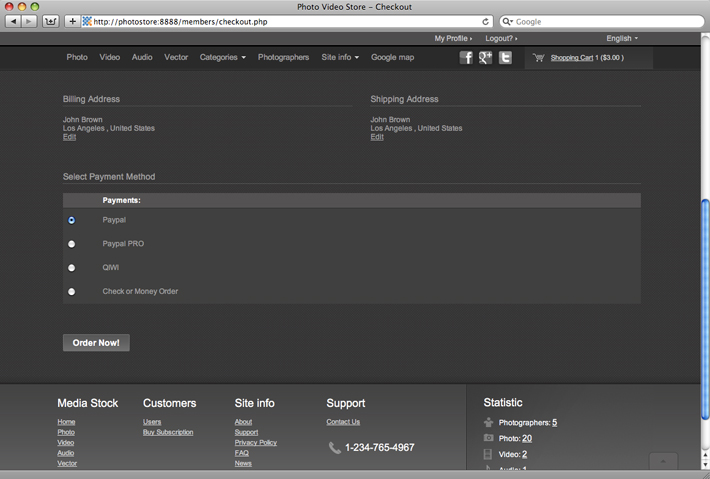
5) Go to payment gateway and pay there:
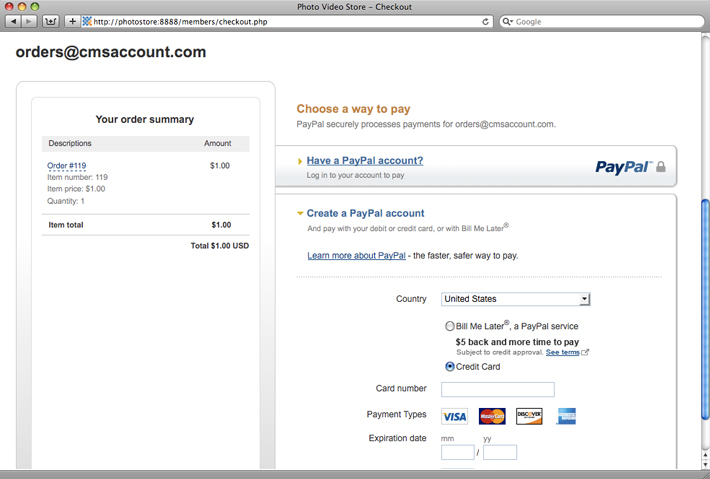
6) Return to the site and download the files:
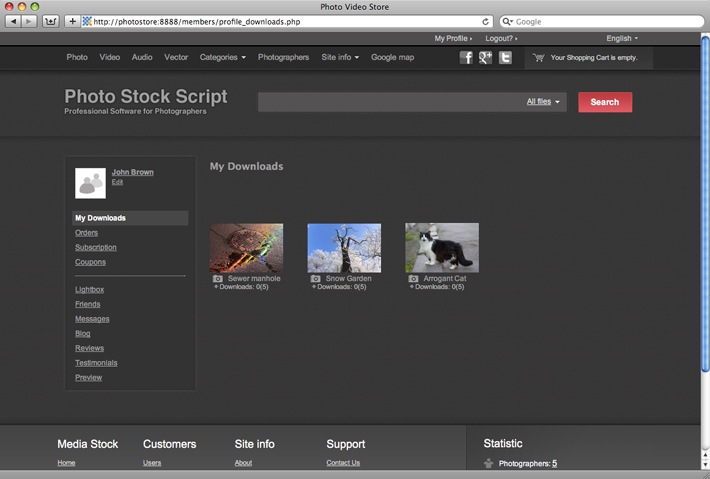
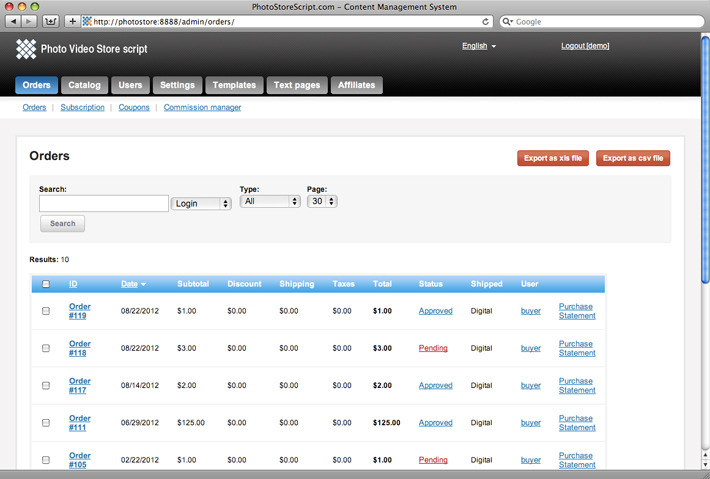
The site owner may handle the orders at Admin panel -> Orders
Selling content - Subscription
The site owner can sell instant time access to a media content.
To switch on the subscription option you should go to Admin panel -> Settings -> Site settings and enable "Subscription"
You need to define Content types before adding a new subscription plan.
To add a new subscription plan you should go to Admin panel -> Settings -> Subscription types
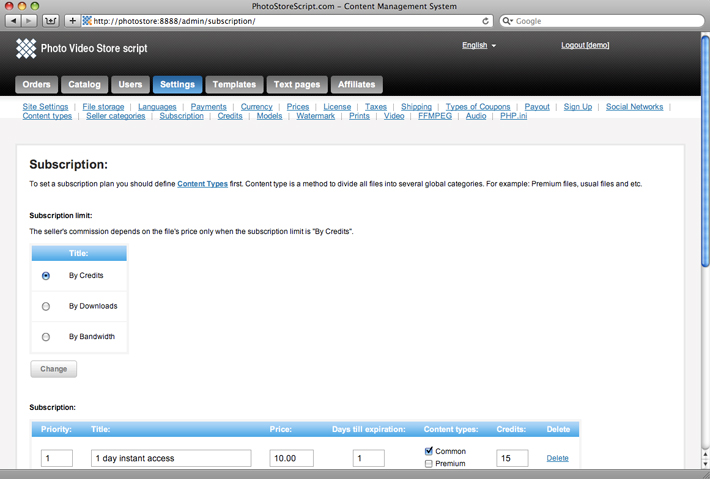
Every subscription plan has the next prorerties:
| Field: | Description: | Example: |
|
Title |
The title of a subscription plan |
1 month instant premium access |
|
Priority |
The position of a subscription plan in the list. |
1 |
|
Price |
The price of the subscription plan |
5.00 |
|
Days till expiration |
Days till subscription plan expiration |
30 |
|
Content types |
The types of content which can be downloaded by a user during the subscription |
Content+Premium |
|
Bandwidth |
The maximum bandwidth which can be downloaded by user during the subscription |
1000 Mb |
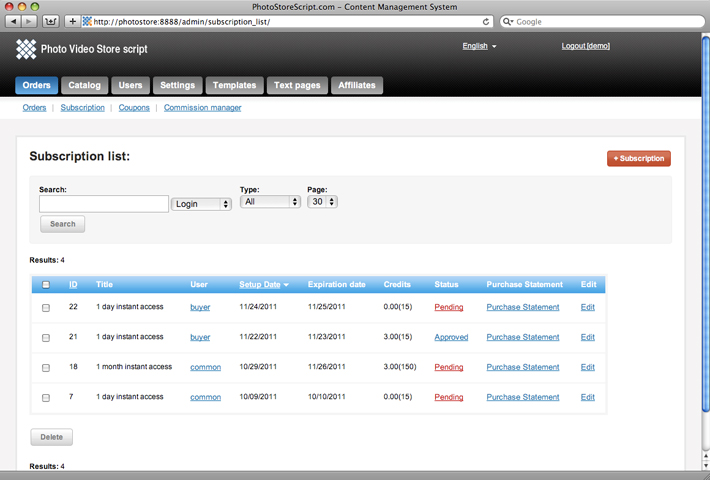
The site owner may see all current subscriptions at Admin panel -> Orders -> Subscriptions:
Selling content - Credits
It is a common practice on the stock sites to sell media content for prepaid credits. It simplifies the process for a user and a site owner.
Photo video store script supports Credits. To switch them on you should go to Admin panel -> Settings -> Site settings and enable "Credits".
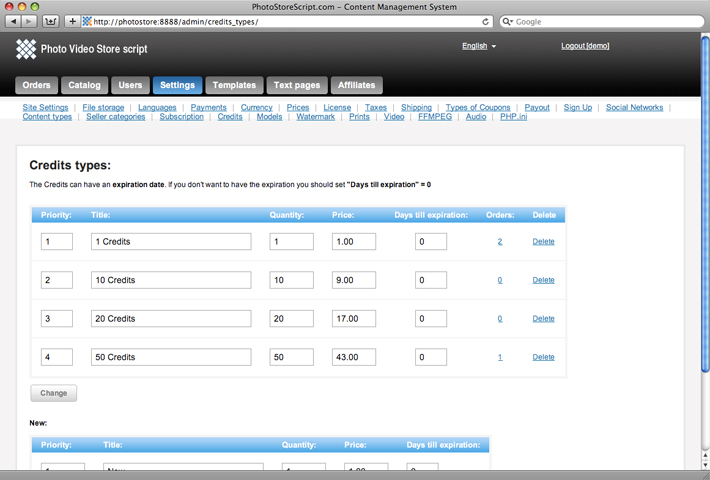
You need to define a list of available Credits at Admin panel -> Setting -> Credits
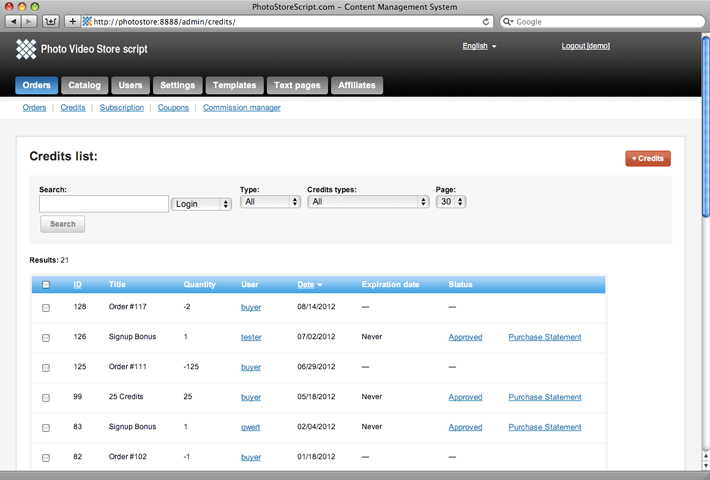
The site owner may see current Credits dinamic at Admin panel -> Orders -> Credits
Selling content - Coupons/Discount
A site admin may set special coupon's and discount's programs for users:
Please go to: Admin panel -> Settings -> Types of Coupons
| Field: | Description: | Example: |
|
Title |
The title of a coupon |
The Coupon for second and more order |
|
Days till expiration |
Days till coupon's expiration |
365 |
|
Total Discount |
The discount in a currency |
5.00 |
|
Percentage Discount |
The discount in percentage |
30 |
|
Free Download Link |
The url of a free file for downloading |
http://www.domain.com/free.avi |
|
Bonus |
The bonus to a user balance |
10.00 |
|
Events |
The event when a coupon is sent to a user |
New order/New Signup |
|
Limit of Usage |
The times of coupon's usage |
1 |
You may see a list of current coupons here:
Admin panel -> Orders -> Coupons
Selling content - Commission
A seller may upload own files on the site, sell them and get a commission.
A site admin may set several sellers types with different rights, uploads limits and commissions. Please go to Customer manager -> Seller types for more information.
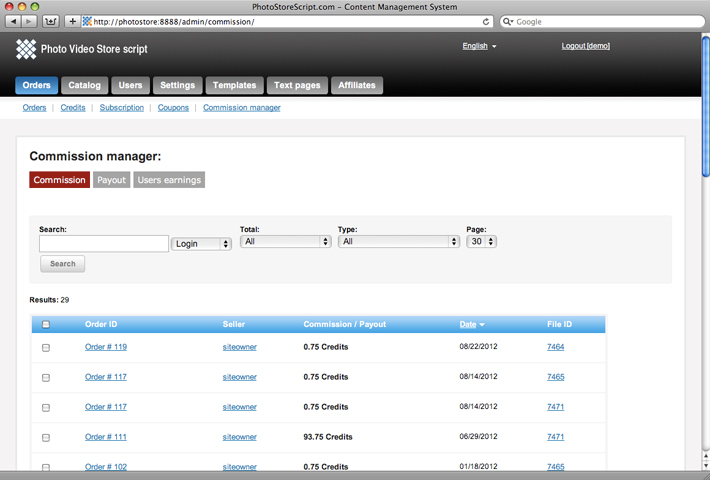
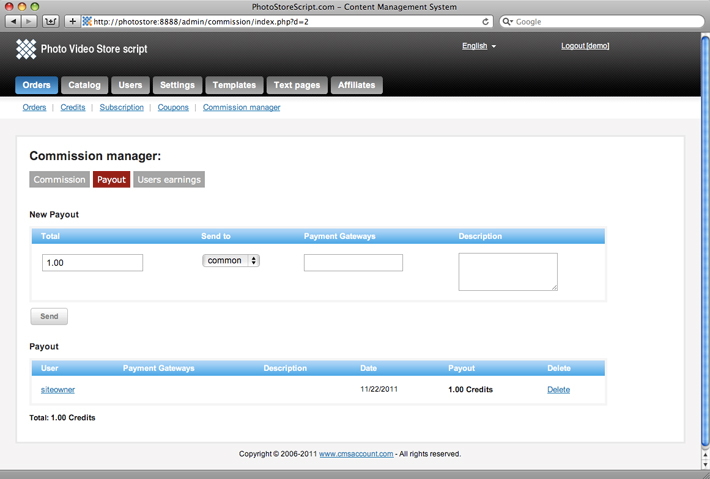
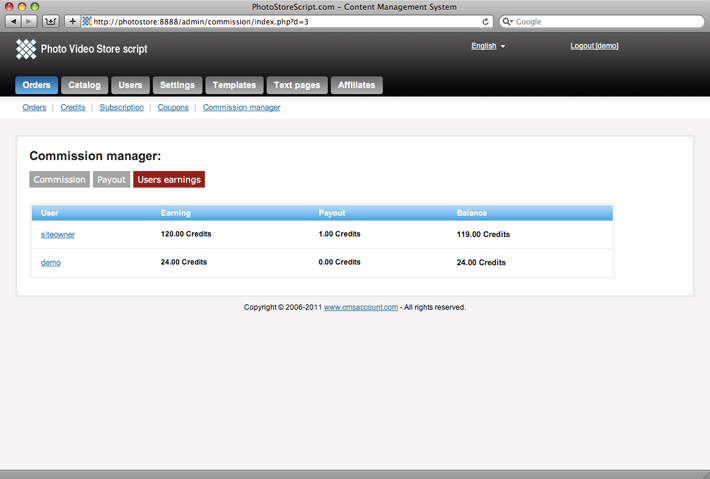
A site admin monitors a commission at Admin panel -> Orders -> Commission manager
There are 3 sections:
1) Commission. The script automatically adds a commission to a seller when his/her file is sold.
2) Payout. Here a site admin pays out to the sellers.
3) Users earnings. Here a site admin may monitor a seller's balance.
A seller can see his/her commission here: Member area -> My commission
Customer manager - Users
To see all users you should go to Admin panel -> Users -> Customers
A user has the next properties:
| Field: | Description: | Example: |
|
Login |
The user's login |
john |
|
Password |
The password |
******* |
|
First name |
The user's first name |
John |
|
Last name |
The user's last name |
Smith |
|
|
The user's email |
sales@cmsaccount.com |
|
Telephone |
The user's telephone |
234234324 |
|
Country |
The user's country |
Canada |
|
City |
The user's city |
Ottava |
|
Zipcode |
The user's zipcode |
90210 |
|
Address |
The user's address |
John St., 23 |
|
Website |
The user's website |
www.domain.com |
|
Date of registration |
The user's date of registration |
10/23/2007 |
|
IP |
The user's ip of registration |
192.168.0.1 |
|
Category |
The seller category |
Silver |
|
Type |
The user type |
Seller/Buyer |
|
Access denied |
The method to switch a user on/off |
True/false |
|
Avatar |
The small user's logo |
picture |
|
Photo |
The user's photo |
picture |
|
Company |
The user's company |
Company Inc. |
|
Description |
The short text about a user |
Excellent photographer. |
|
Newsletter |
A user may get a newsletter |
True/false |
Customer manager - Seller types
A site admin may set several sellers types with different rights, uploads limits and commissions. Please go to Admin panel -> Settings -> Seller categories
| Field: | Description: | Example: |
|
Title |
The category title |
Gold |
|
Allow to create category |
It allows a seller to create a category |
True/false |
|
Allow to upload photo |
It allows a seller to upload photo files |
True/false |
|
Allow to upload video |
It allows a seller to upload video files |
True/false |
|
Allow to upload audio |
It allows a seller to upload audio files |
True/false |
|
Allow to upload vector |
It allows a seller to upload vector files |
True/false |
|
Show in Menu |
A seller will display into box menu |
True/false |
|
Blog |
A seller may have a personal blog |
True/false |
|
Percentage of sale to site owner |
The commission to a site ovner |
25 |
|
Priority |
The category possition in the list |
1 |
|
Upload photo limit (Mb) |
A use may upload a photo file if its size is smaller than the limit in Megabites. |
2 |
|
Upload video limit (Mb) |
A use may upload a video file if its size is smaller than the limit in Megabites. |
250 |
|
Upload preview video limit |
A use may upload a preview video file if its size is smaller than the limit in Megabites. |
20 |
|
Upload audio limit (Mb) |
A use may upload an audio file if its size is smaller than the limit in Megabites. |
50 |
|
Upload preview audio limit |
A use may upload a preview audio file if its size is smaller than the limit in Megabites. |
3 |
|
Upload vector limit (Mb) |
A use may upload a vector file if its size is smaller than the limit in Megabites. |
20 |
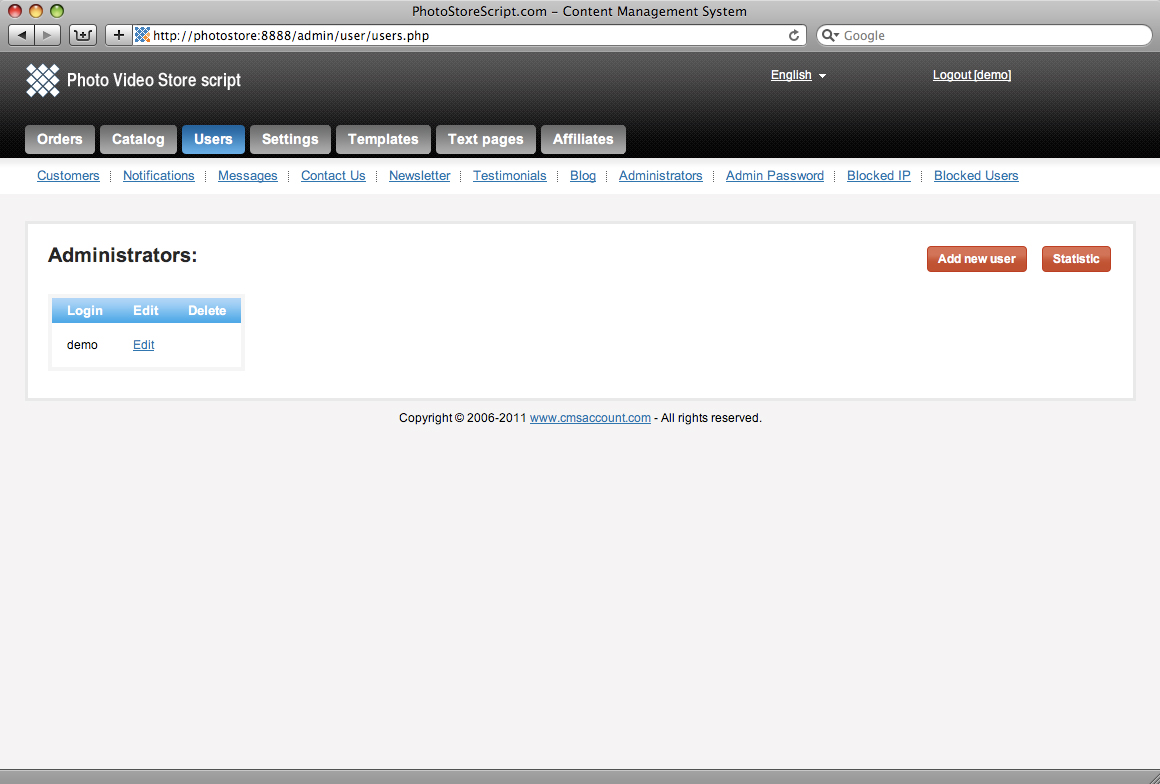
Customer manager - Administrators
This is a list of administrators which can have a full access to Admin panel
Please go to Admin panel -> Users -> Administrators
Customer manager - Blocked IPs
The photo store script has a tool which allows to prevent bad visitors to define passwords of site users. If a user fails to login several times per minute than his/her IP is blocked. A site admin may monitor a list of suspended Ips at Admin panel -> Users -> Blocked IP
Customer manager - Blocked Users
The photo stock script has a tool which allows to prevent bad visitors to define passwords of site users. If a user fails to login several times per minute than his/her customer account is blocked and a new generated password is sent to him/her. A site admin may monitor a list of suspended users at Admin panel -> Users -> Blocked Users
Customer manager - Change admin password
Admin panel password can be changed at: Admin panel -> Settings -> Admin password
Customization - Templates
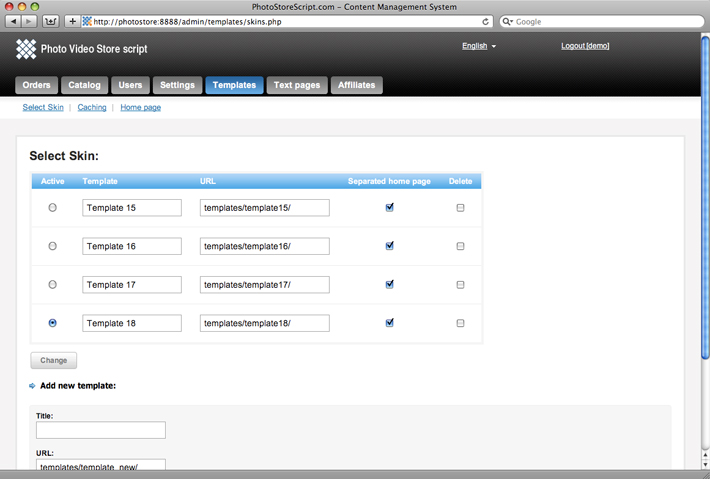
At the moment we have 4 professional templates. To change a current template you should go to Admin panel -> Templates -> Select Skin and select an appropriate one.
After you selected a skin you may modify the
template files here on ftp:
/templates/template[n]/
Customization - Caching
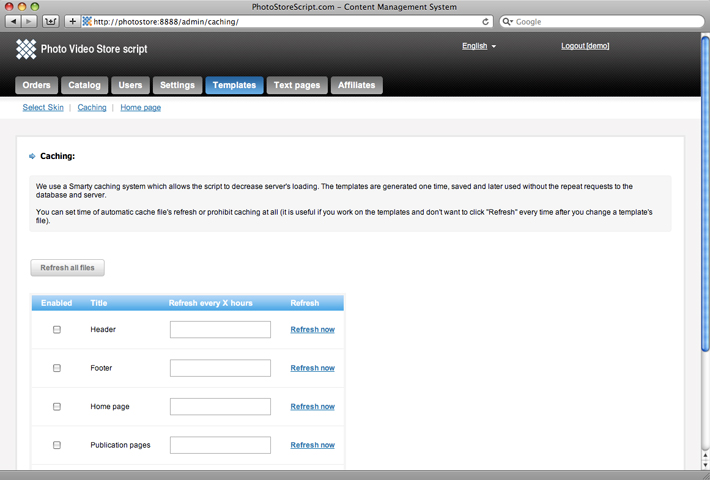
The script uses a Smarty caching system which allows the script to decrease server's loading. The templates are generated one time, saved and later used without the repeat requests to the database and server.
You can set time of automatic cache file's refresh or prohibit caching at all (it is useful if you work on the templates and don't want to click "Refresh" every time after you change a template's file).
Customization - Home page
The photo store script has unique tool which allows to customize a home page and place different slideshows and photo sets there.
Please go to Admin panel -> Templates -> Home page
If you want to modify home page content you should edit the file on FTP: /templates/template[n]/home.tpl
You can place different photo/video sets by different criterias into HTML code of the home pag.
To add a new file set component you should insert the next code: {COMPONENT_ID}.
Important! The components are cached once per hour. So you should clear cache after you change a component.
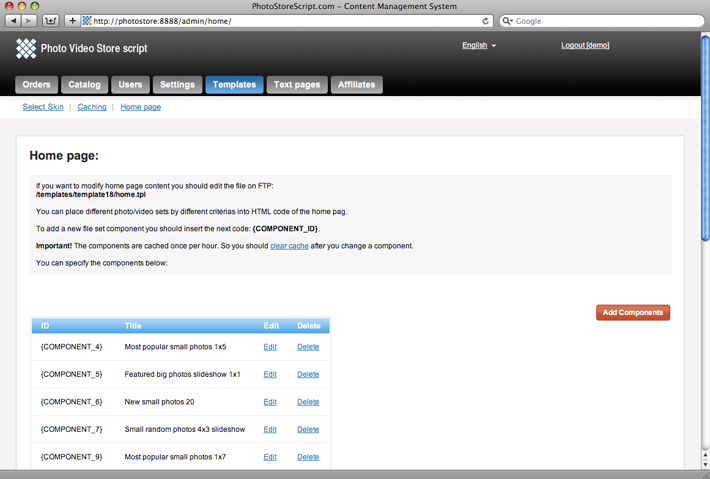
Every component has the next properties:
| Field: | Description: | Example: |
|
Title |
The title of component |
Small random photos 4x3 slideshow |
|
Content |
The type of content |
Photo small thumbs, Photo big thumbs, Video thumbs, Audio thumbs, Vector small thumbs, Vector big thumbs. |
|
Type |
The method of sorting |
Featured, New, Most popular, Most downloaded, Free Download, Random. |
|
Category |
The category which contains the files for the set. |
The list of available categories |
|
User |
The author of files from the set |
The list of available users |
|
Quantity |
The quantity files in the set. It must be more or equal Columns x Rows |
20 |
|
Columns |
The quantity of columns in the set |
4 |
|
Rows |
The quantiry of rows in the set |
3 |
Community tools
The photo stock script has powerful tools to create a community between users to users and users to site admin.
Community tools - Notifications
A site admin may handle all notifications on the site.
Please go to Admin panel -> Users -> Notifications
The site email is sent when the next events happen:
- Contact email to admin
- Contacts response to user
- Fraud auth email to user
- New order emal to user
- New order email to admin
- New subscription email to user
- New subscription email to admin
- New credits email to user
- New credits email to admin
- New signup email to admin
- New signup email to user
- Forgot password email to user
- Tell a friend email
A site admin can enable/disable them and modify the emails.
Community tools - Contact Us
A user can write an email to a site owner. He/she should go to Front End -> Contact Us and fill in a form.
The contact form is protected by captcha, so all spam emails will be removed.
A side admin recieves the email on 'Admin email'. Also he can see all emails at Admin panel -> Users -> Contact Us
The email template can be modified at Admin panel -> Users -> Notifications
Community tools - Newsletter
A site admin can send newsletters to users.
Please go to Admin panel -> Users -> Newsletter
There are 2 ways to send a newsletter:
- Site internal message
Community tools - Blog
Every user on the site can have a personal blog.
Please go to Front End -> Member area -> My profile -> Blog
A site admin can moderate posts here: Admin panel -> Users -> Blog
Community tools - Messages
A user has a posibility to send and receive messages from/to other users and site admin.
Please go to Front End -> Member area -> My profile -> Messages
A site admin can moderate messages here: Admin panel -> Users -> Messages
Community tools - Reviews
A user can write reviews (comments) on every publication page.
Please go to Front End -> Some publication page -> Tools and click 'Reviews'. This is Ajax based section where you can read and post reviews.
A user can modify his reviews here: Front End -> Member area -> My profile -> Reviews
A site admin can moderate reviews here: Admin panel -> Users -> Reviews
Community tools - Testimonials
A user can write testimonials for every seller.
Please go to Front End -> Photographers -> Tools and click 'Add a Testimonial'.
A user can modify his testimonials here: Front End -> Member area -> My profile -> Testimonials
A site admin can moderate testimonials here: Admin panel -> Users -> Testimonials
Community tools - Friends
A user can create a list of his/her friends.
Please go to Front End -> Photographers -> Tools and click 'Add to friend'.
A user can handle his/her friends here: Front End -> Member area -> My profile -> Friends
Or on a friend personal page click 'Delete form friend'
Community tools - Tell a friend
A user can send an email about a publication to his/her friend.
Please go to Front End -> Some publication page -> Tools and click 'Tell a friend'.
It is Ajax based service allows you to send a message without page reloading.
Text pages
The site can contain a list of text pages (About Us, Terms of Use and etc.)
Please go to Admin panel -> Text pages -> Site info.
All the pages will display into 'Site info' box which you may enable at Side boxes section.
Text pages - News
A site admin can add news on the site.
Please go to Admin panel -> Text pages -> News.
The news can be read as RSS too.
Member area
Please login to Member area on Front End. This is an area where a user may handle his account, modify personal information, order files, upload media content, get a commission, order credits and subscription.
The script supports 4 user's types:
- Buyer
- Seller (Photographer)
- Affiliate
- Common = Buyer + Seller + Affiliate
Member area - My Profile
It is a section where a user modify his/her personal information and uses different community tools.
Please go to Front End -> Member area -> My profile
My profile area includes:
- Orders
- Personal information
- Avatar/Photo
- Messages
- Blog
- Reviews
- Testimonials
- Friends
Member area - Buy Credits
A user buys Credits here. He can buy new ones and see a history of payments.
Please go to Front End -> Member area -> Buy Credits
If Credits is disabled then the section is away.
Member area - Orders
A user can monitor a status of his/her orders here and download purchased files.
Please go to Front End -> Member area -> Orders
Member area - Subscription
Here a user subscribes on instant access to media content. He can purchase a new subscription, upgrade old one and see a history of payments.
Please go to Front End -> Member area -> Subscription
If Subscription is disabled then the section is away.
Member area - My Upload
The section is available for sellers only. Here a seller may upload own files.
Please go to Front End -> Member area -> My Upload
For more information please go to Uploading content -> User upload panel
Member area - My Commission
The section is available for sellers only. Here a seller can see his/her earnings.
Please go to Front End -> Member area -> My Commission
There are 3 sections:
- Balance = Earning - Payout
- Earning
- Payout
Member area - Lightbox
It is a section where a user keeps his favorite publications
Please go to Front End -> Member area -> Lightbox
Member area - Coupons/Free Download
It is a section where a user can see his coupons/discounts and free bonus download links.
Please go to Front End -> Member area -> Coupons/Free Download